
1. Why Do I Need to Sync My Calendar?
Syncing your external calendars with SpaceCloud eliminates double-bookings and allows you to manage your entire schedule in one place.
Automatic Availability Blocking: An event added to your Google Calendar or imported from an external platform will automatically block that time on your SpaceCloud calendar, preventing overlapping bookings.
Real-Time Booking Updates: Any confirmed booking made on SpaceCloud automatically reflects on your connected Google Calendar and other exported channels, keeping all your listings up to date simultaneously.
Instant Double-Booking Alerts: If a schedule conflict or potential double-booking ever occurs across your synced calendars, SpaceCloud will immediately alert you via app push notifications and your web notification centre so you can resolve it right away.
You no longer need to switch between platforms to block unavailable time slots manually—your schedule stays perfectly aligned across every channel, hands-free.
2. How to Sync an External Calendar
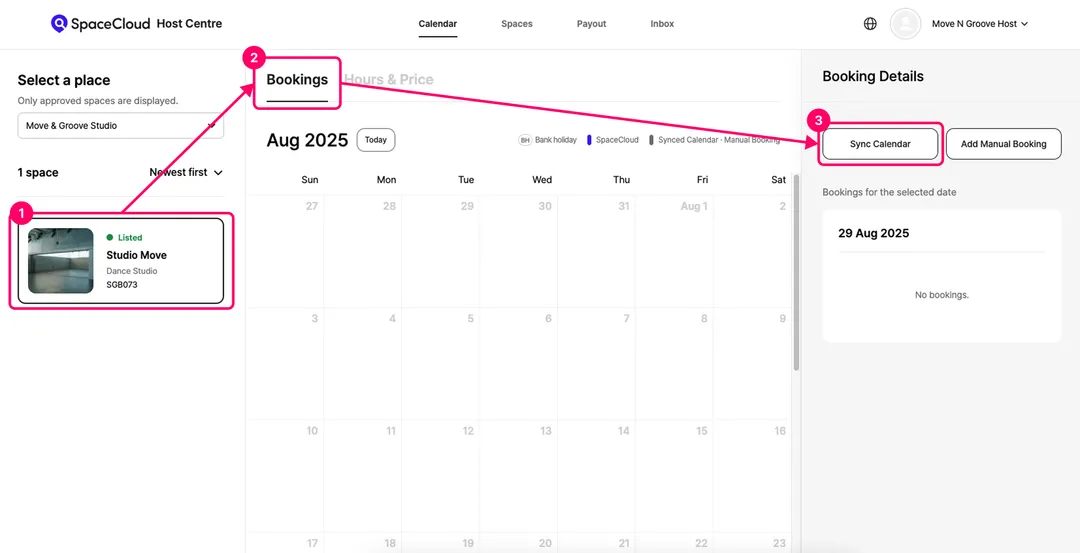
1) In the Calendar [Booking Details] page, click [Sync Calendar].
2) Choose the method that best suits your workflow:
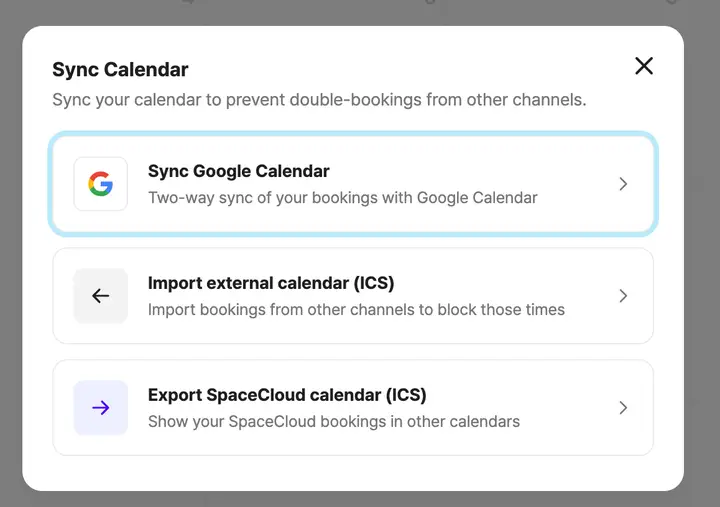
Option A: Sync Google Calendar (Recommended – Real-Time Two-Way Sync)
What it does: Enables full two-way synchronisation between your SpaceCloud calendar and your personal or business Google Calendar.
How it works: Any new booking made on SpaceCloud automatically appears on your Google Calendar, and any schedule added to Google Calendar immediately blocks availability on SpaceCloud. Because updates happen in real time in both directions, this is our most recommended method for preventing double-bookings.
Best for: Hosts who primarily run their daily schedules through Google Calendar.
Option B: Import external calendar (ICS – One-Way Sync)
What it does: Imports bookings from third-party booking platforms (such as Airbnb, VRBO, or other reservation channels) via an iCal/ICS link.
How it works: Bookings made on external platforms are pulled in to block unavailable time slots on SpaceCloud. (Note: This is a one-way import only—bookings made on SpaceCloud will not be sent back to the external platform.)
Best for: Blocking your SpaceCloud availability whenever you receive a booking on another channel.
Option C: Export SpaceCloud calendar (ICS – One-Way Sync)
What it does: Provides an ICS link for your SpaceCloud listing that you can paste into other calendar.
How it works: Exports your SpaceCloud bookings to external calendars so confirmed bookings appear elsewhere. (Note: Unlike Option A, this is a one-way export—changes made on external calendars will not sync back to SpaceCloud, and external feeds may take a few hours to refresh.)
Best for: Keeping your other calendar automatically updated with your latest SpaceCloud bookings.
3. Syncing Methods
1) Sync Google Calendar (Two-way Sync)
Step 1: Select [Sync Google Calendar]
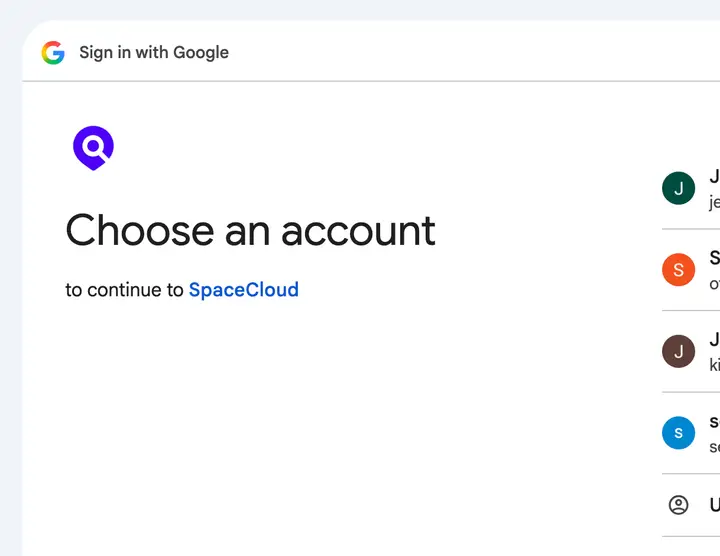
Step 2: Choose a Google account connected to the calendar you wish to synchronise with SpaceCloud.
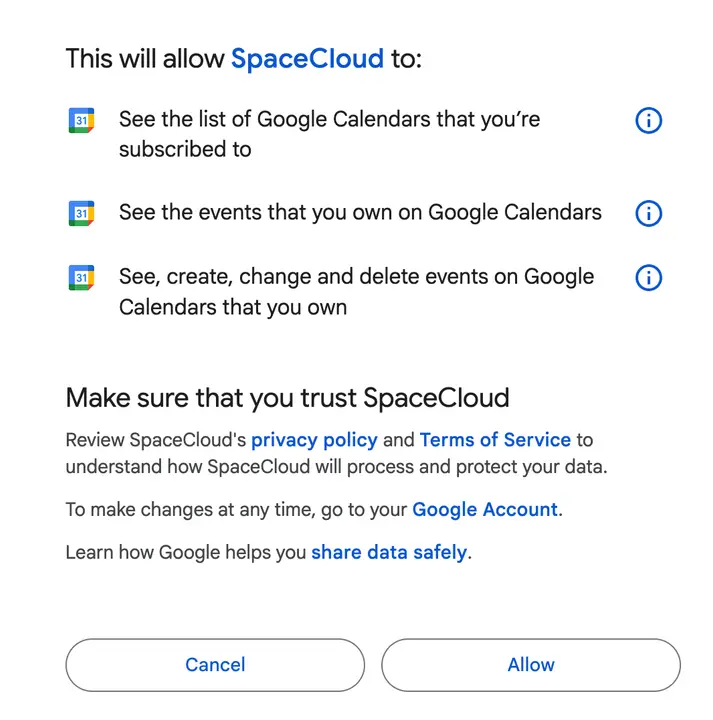
Step 3: Authorise Permissions
Review the permissions required for SpaceCloud to synchronise with your Google Calendar, then click [Allow] to complete the connection.
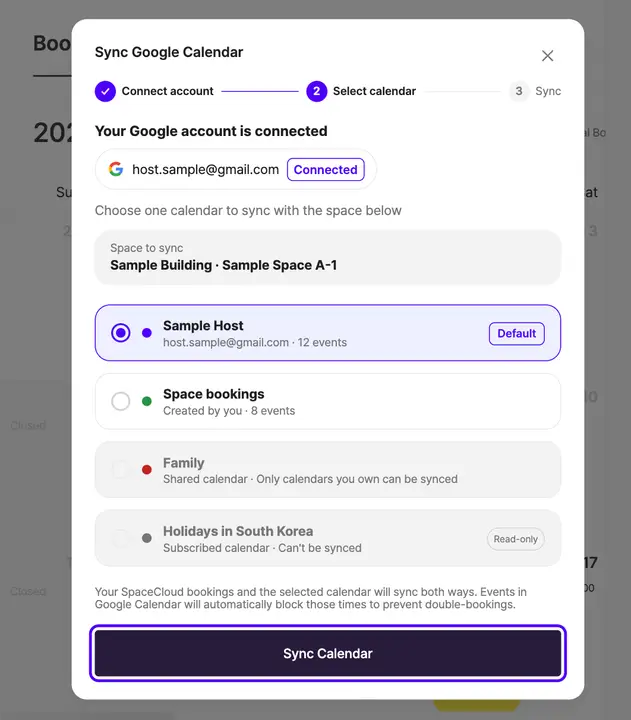
Step 4: Once your Google account is connected, select the specific calendar you want to sync with your SpaceCloud calendar, then click [Sync Calendar].
Step 5: Your Google Calendar is now fully synced with your SpaceCloud calendar in both directions.
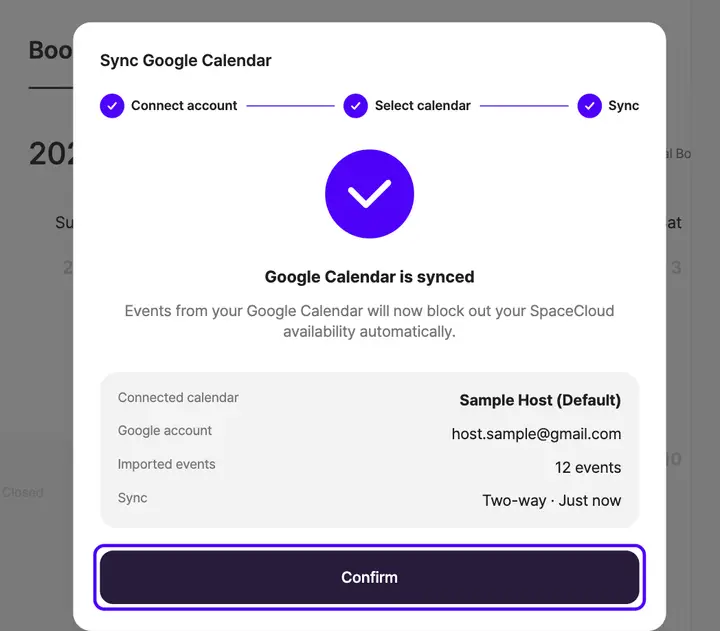
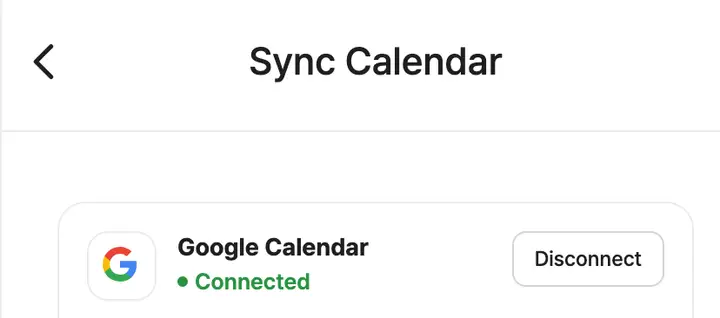
* You have full control over your calendar connections and can disconnect your Google Calendar at any time.
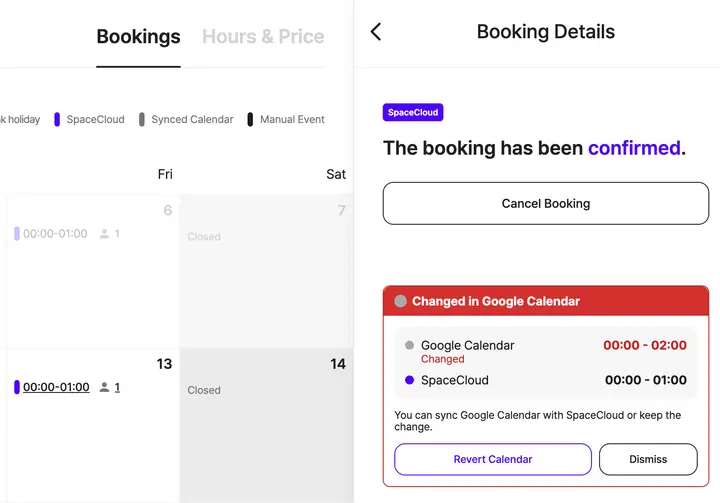
Note: Even with two-way Google Calendar sync, changes you make to SpaceCloud bookings in Google Calendar will only be displayed on your SpaceCloud calendar and will not update the actual booking. Please make all booking changes or cancellations directly on SpaceCloud to ensure they are properly applied.
2) Import external calendar (ICS – One-Way Sync)
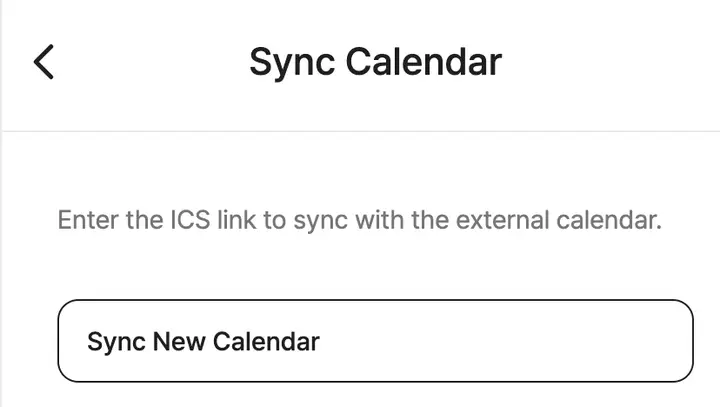
Step 1: Select [Import external calendar (ICS)] then click [Sync New Calendar]
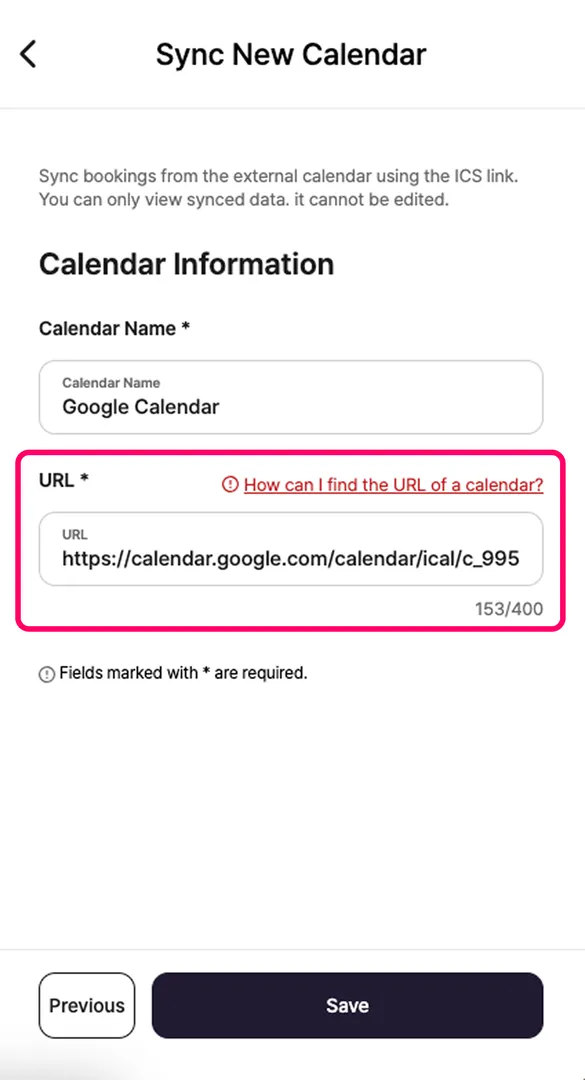
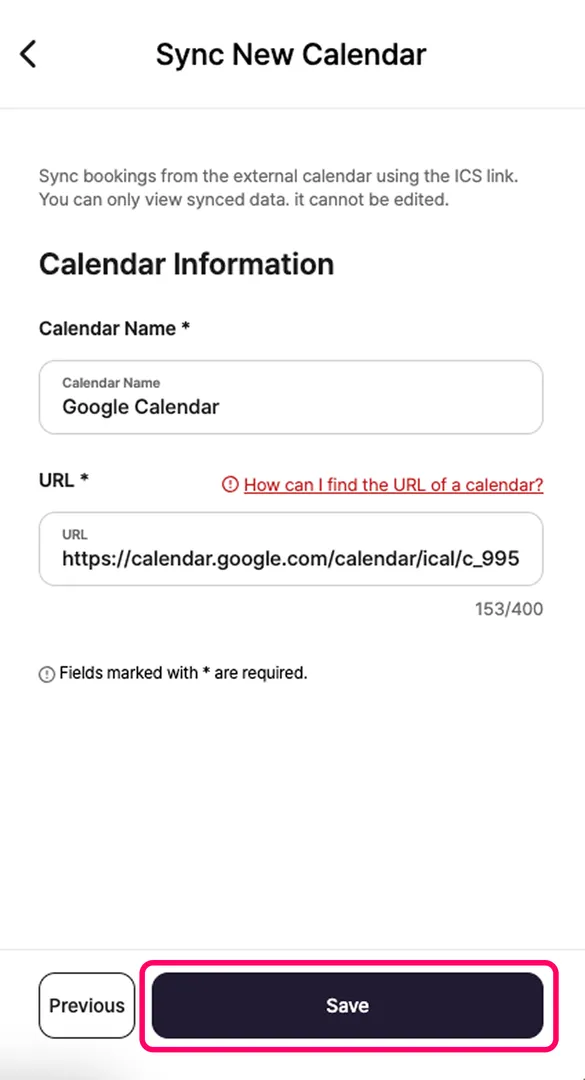
Step 2: Enter the calendar name and the iCal URL, then click [Save].
(Not sure where to find your iCal URL? Check out 4. How to Find Your iCal Link below.)
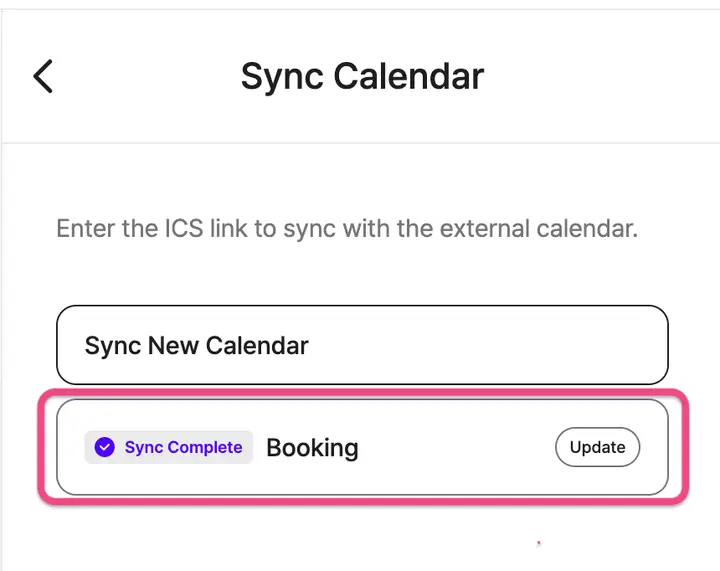
Step 3: Once synced, the status will be updated to [Sync Complete]. Calendars automatically sync every 15 minutes. Only bookings from the past 3 months to the next 3 months will be synced. To sync immediately, click [Update].
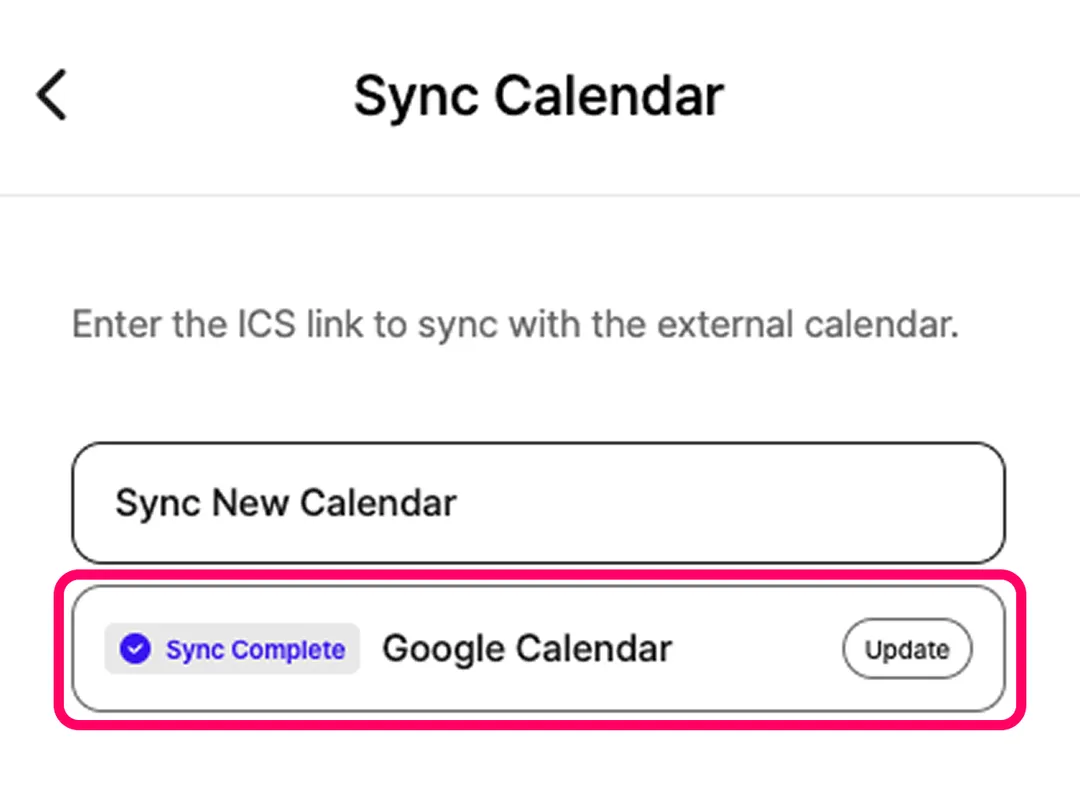
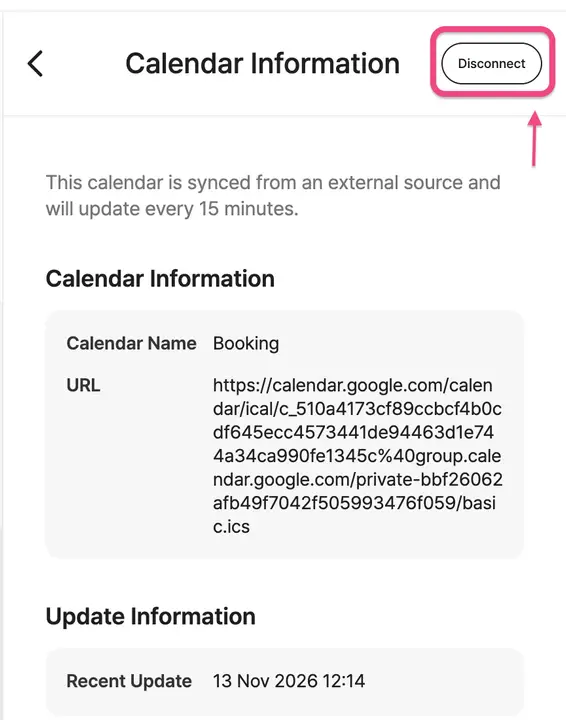
* You can remove an imported external calendar at any time. Select [Import External Calendar (ICS)] and choose the calendar you want to disconnect, then click [Disconnect].
3) Export SpaceCloud calendar (ICS – One-Way Sync)
Step 1: Select [Export SpaceCloud Calendar (ICS)]
Step 2: Click [Create subscription link]
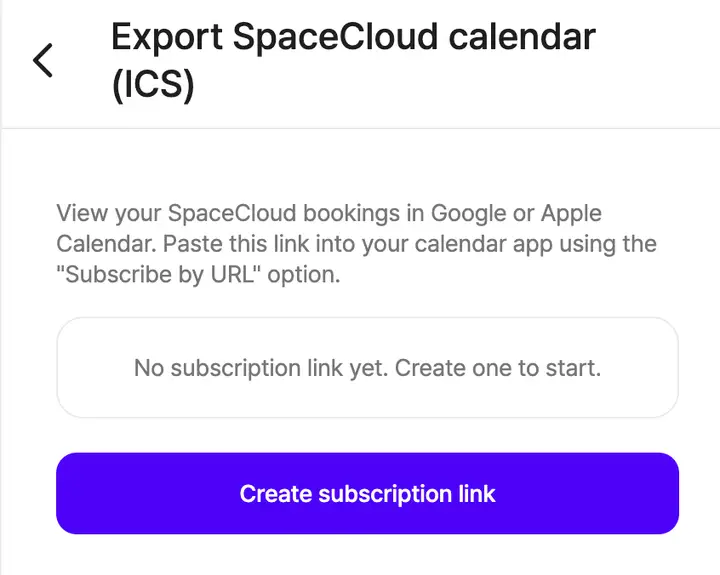
Step 3: Click [Copy link] to copy your unique subscription URL, and paste it in your external calendar.
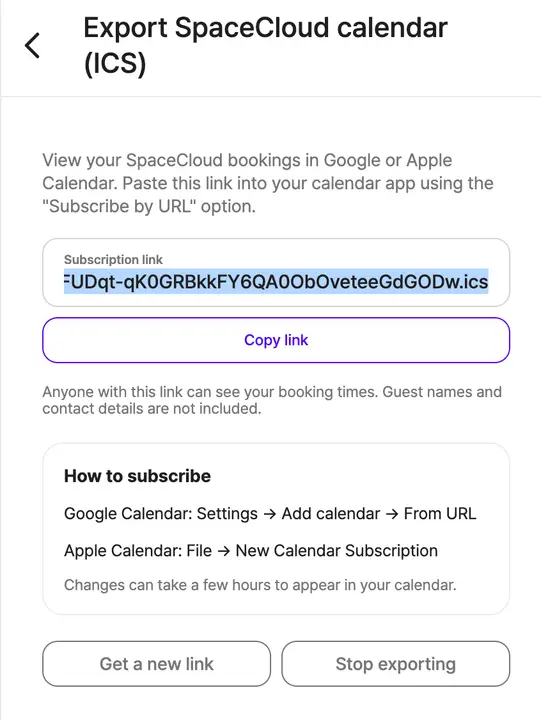
* Clicking [Get a new link] generates a brand-new ICS URL instantly and invalidates your previous link.
* Clicking [Stop exporting] invalidates your subscription link and stops sending new events from your SpaceCloud calendar to external calendars. Any bookings already exported will remain on your connected calendars, though no future updates will sync.
4. How to Find Your iCal Link
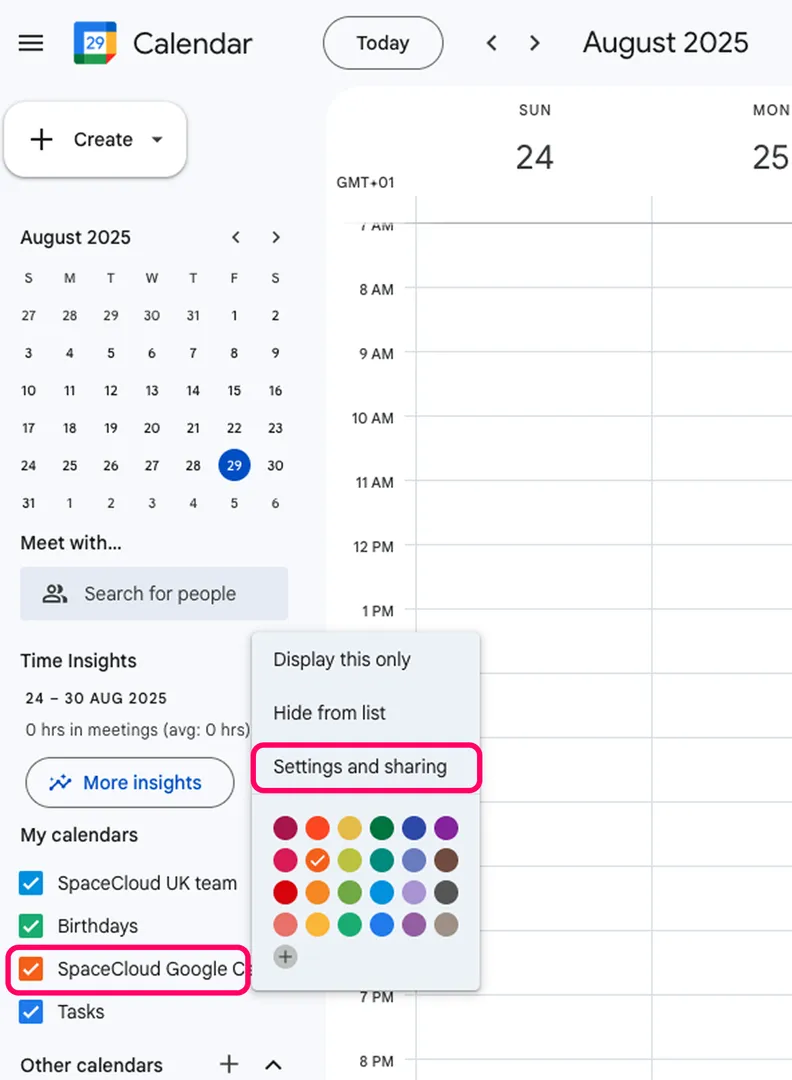
1) Go to Google Calendar (on a PC web browser).
2) On the left, hover over the calendar to sync, click the three dots (⋮), and select "Settings and sharing."
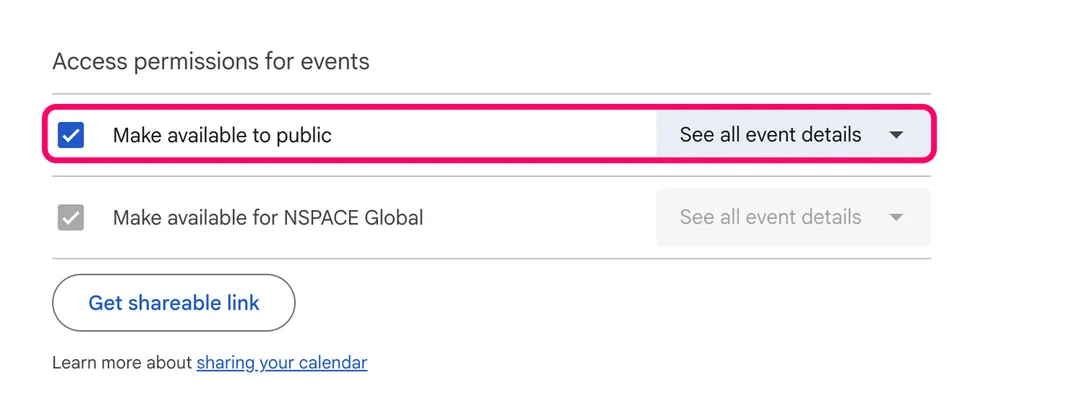
3) Under "Access permissions for events", turn on "Make available to public."
4) Scroll down to the "Public address in iCal format" section and copy the link provided.
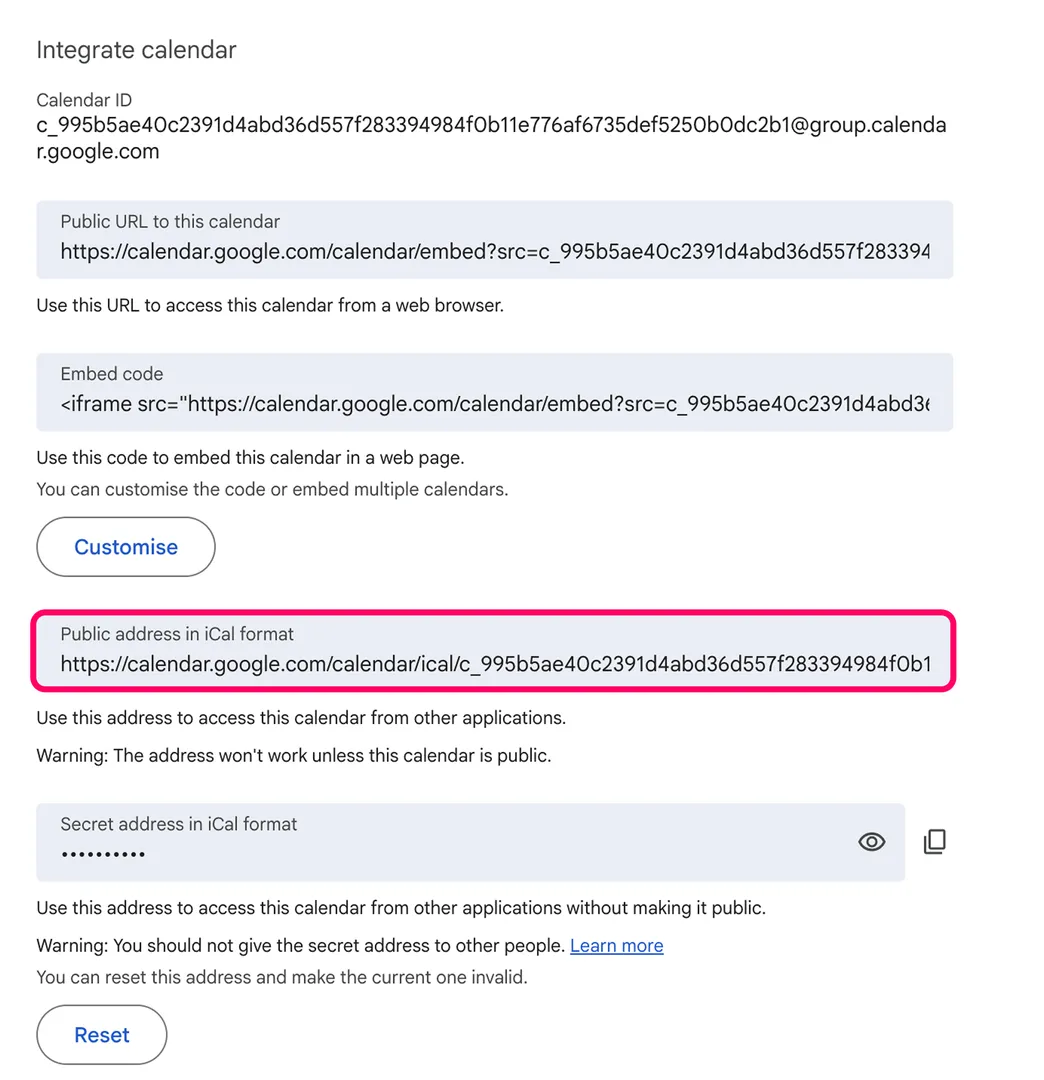
5) Finally, paste this link into the calendar URL field on SpaceCloud.